

What it does
Use this when you already designed a screen in Figma and want to turn it into an editable Flowboard draft faster. Flowboard will:- read the PNG you exported from Figma
- rebuild the screen as a real Flowboard screen
- insert it into your draft flow
- keep it editable in the visual editor
Typical workflow
1
Design your screen in Figma
2
Export the frame as a PNG
3
Import that PNG to your Flowboard Flow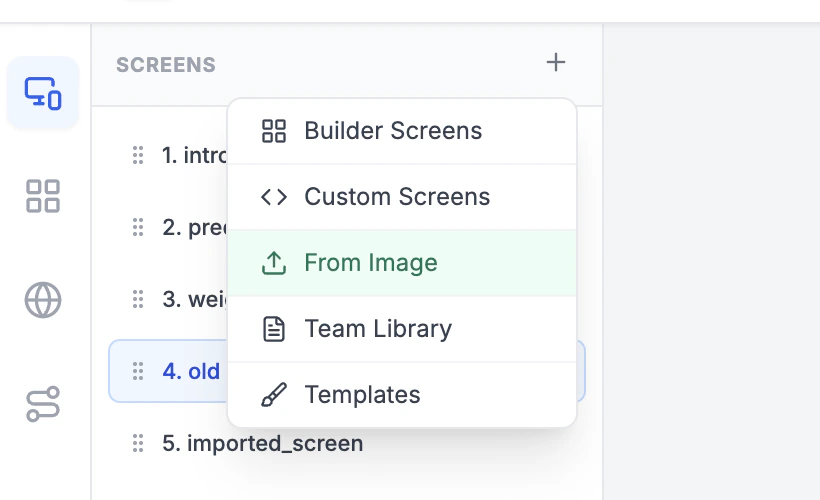
4
Let Flowboard convert it into a real screen inside your draft
5
Review the result, edit the components, then publish as usual
What you get after conversion
After import, the result lives in your flow draft as a real screen, not just a screenshot. That means you can:- edit text, layout, spacing, and colors
- change buttons and actions
- adapt the screen to your flow logic
- preview it in Flowboard
- ship it in your app with the standard Flowboard SDK
Best results
For the cleanest conversion:- export one screen at a time
- use PNG
- export the actual frame, not the whole Figma canvas
- avoid comments, selection outlines, or editor overlays in the export
- use a clean mobile screen capture rather than a crowded board screenshot