

This guide keeps the same implementation path most teams follow:
- Create an app in Flowboard Studio
- Build and publish a flow
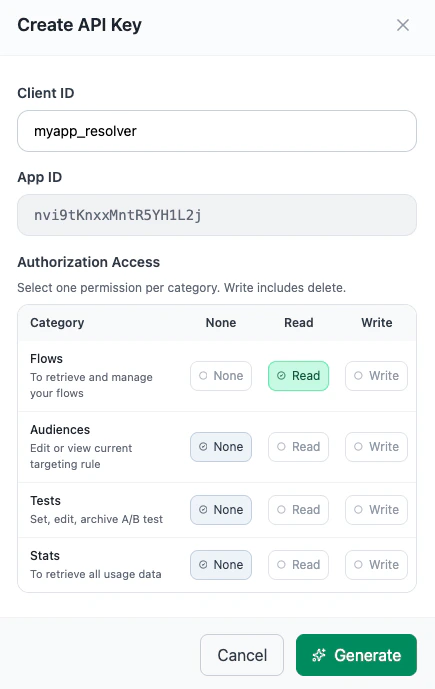
- Generate a read-only API key
- Install the SDK
- Initialize Flowboard in your app
- Launch the flow and verify the integration
Before you begin
Make sure you have:- Access to Flowboard Studio
- An existing mobile app in React Native, Expo development build, Flutter, native iOS, or native Android
- Your app identifier ready:
- iOS: bundle ID
- Android: package name
- Permission to add a new SDK dependency to your app
What you will set up
By the end of this guide, you will have:- One published flow in Flowboard Studio
- One API key with read access for flows
- Flowboard initialized in your app
- A button or trigger that launches the flow
1. Create an app in Flowboard Studio
Open Flowboard Studio and create a new app. When you create the app, add the identifiers you want Flowboard to target. This ensures the correct configuration is resolved when your app requests a flow. Recommended details to configure early:- App name
- iOS bundle ID
- Android package name
- Environment or workspace conventions your team uses
2. Create and publish your first flow
Inside your app workspace in Studio:- Create a new flow.
- Start from AI, a template, or a blank flow.
- Add the screens and actions you need.
- Review the default audience or distribution rules.
- Publish the flow.
- The flow is in published state
- The flow is assigned to an audience or otherwise available for launch
- You know whether you want to launch the default flow or a specific flow ID
3. Create an API key
Your app needs an API key so the SDK can retrieve published Flowboard data. To generate it:- Open your app in Studio.
- Go to the app configuration page.
- Scroll to the API keys section.
- Create a new key for the mobile app integration.
4. Install the SDK
Choose the setup that matches your app.5. Initialize Flowboard
Initialize Flowboard as early as possible during app startup, and wrap your app with the provider when using the React Native SDK.6. Launch your flow
Add a simple trigger in your app so you can confirm the integration end to end.7. Verify the integration
Run the app and trigger the flow. You should verify that:- The SDK initializes without errors
- The published flow opens in the app
- Screen transitions work as expected
- Completion callbacks fire at the end of the flow
Troubleshooting
The flow does not open
The flow does not open
Check that:
- Your API token is valid
- The flow is published
- The flow is assigned to an audience that matches your device or app context
- Your app was rebuilt after installing the SDK
Expo project fails after installation
Expo project fails after installation
Clean the generated native project and reinstall dependencies, then rebuild:
The app builds but Flowboard crashes or behaves incorrectly
The app builds but Flowboard crashes or behaves incorrectly
Make sure you are not testing inside Expo Go, and confirm that all native dependencies required by
flowboard-setup were installed successfully.Next steps
After your first successful launch, the next common steps are:- Refine the audience targeting
- Add analytics or completion tracking
- Launch a specific flow by ID
- Create variants for experimentation
- Add custom native screens where needed
Need help with setup or migration? Contact greg@flow-board.co.